Payture — payment management
Payture Merchant Account is a web service of the Payture payment gateway that lets Merchants manage card payments made by their Customers.
Analytics
This service lets you view payment statistics for a selected time period, the ratio of successful to unsuccessful payments, and detailed payment statistics broken down by one or more selected parameters.
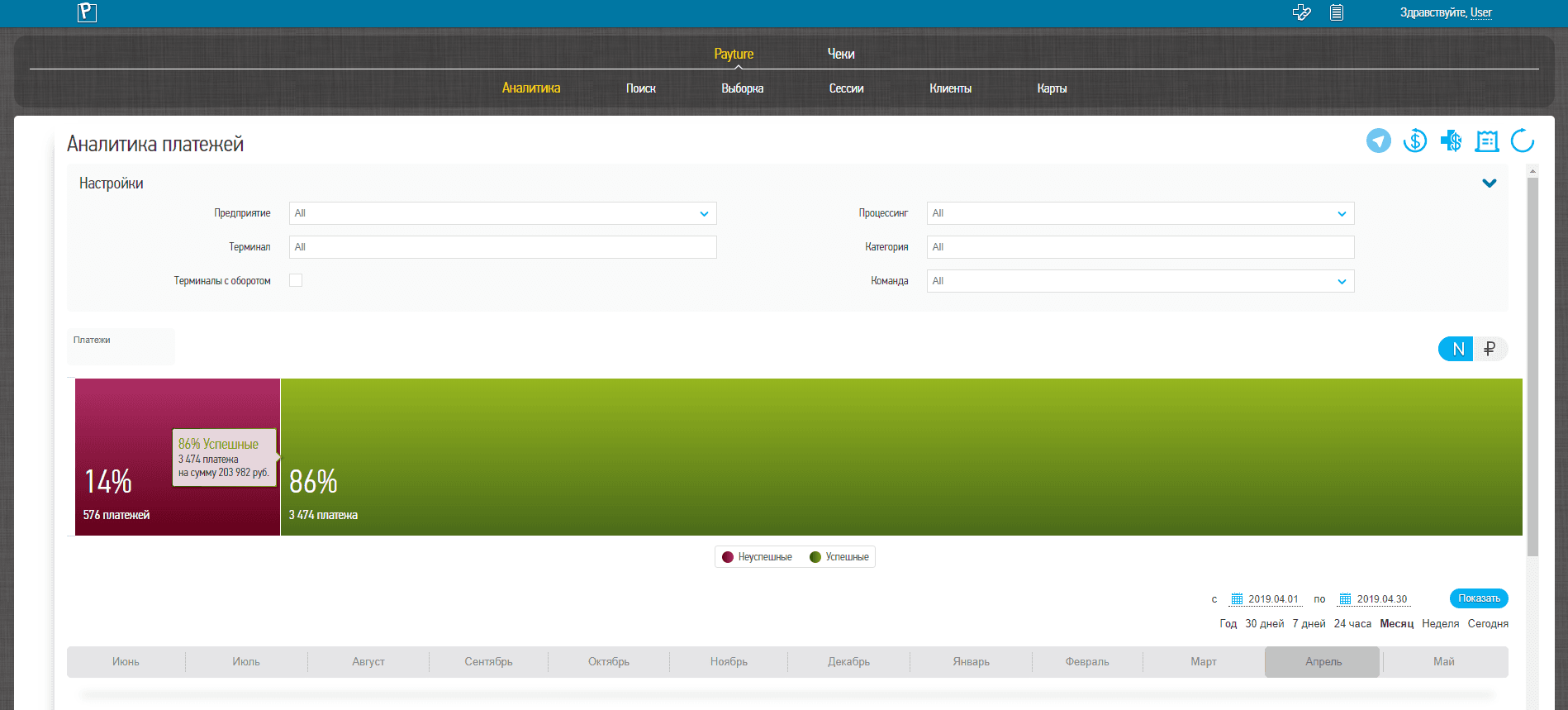 Interface in Russian
Statistics can be viewed for any selected period. For convenience, the most frequently used periods are available as shortcuts: the last year, the last 30 days, the last 7 days, the last 24 hours, the current month, the current week and the current day.
The upper chart shows the ratio of successful to unsuccessful payments for the entire selected period. The ratio can be viewed by count or by amount.
Click the green (successful payments) or red (unsuccessful payments) segment to view a report broken down by the selected parameter. The chart shows the top 10 values for each parameter. A detailed report is shown in the table below the chart.
| Parameter | Description |
|---|---|
| Merchant entities | Merchant entity (groups several terminals) |
| Terminals | Merchant terminals |
| Card products | Card type Visa Classic, Mastercard Standard, Visa Gold, etc. |
| User country | Two-letter country code determined from the Customer's IP address The country where the Customer was likely located at the time of the payment |
| User city | Customer's city determined from the Customer's IP address The city where the Customer was likely located at the time of the payment |
| Bank country | Two-letter country code of the card's issuing bank |
| Currency | Three-letter code of the payment currency |
| Banks | Issuing bank of the card used for the payment attempt Click a bank to view the top 10 card products for that bank |
| Error code | Error description For unsuccessful payments |
| Breakdown | Detailed time-based report for the selected parameters Shown on the lower chart |
Detailed report
The lower chart shows a detailed time-based report for the selected period. Display mode: bar charts or a line chart.
Click a bar or point to drill down into that period. When viewing data for one hour, the charts can be drilled down to the minute. In this case, you can switch the hourly view between a per-minute chart and a chart with 5-minute intervals. When you drill down into the chart, a "Back" button appears in the upper-right corner (below the currency selector) to return to the previous period.
Report comparison
A comparison mode is available for detailed reports. To use it, click "Add" above the chart and choose what to compare: periods or terminals.
When comparing periods, two modes are available: overlay by day of the month (the 1st, 2nd, etc.) or by day of the week (Monday, Tuesday, etc.).
Comparison is not available for the hourly period or on a detailed chart filtered by the parameters selected on the upper chart.
Search/Filter
These services let you find a specific transaction by its unique parameters or filter multiple transactions that match a set of parameters.
The Merchant can run several searches/filters at the same time.
For each transaction, you can view its details and perform the operations available for its current state (capture, release of the hold, refund).
Search
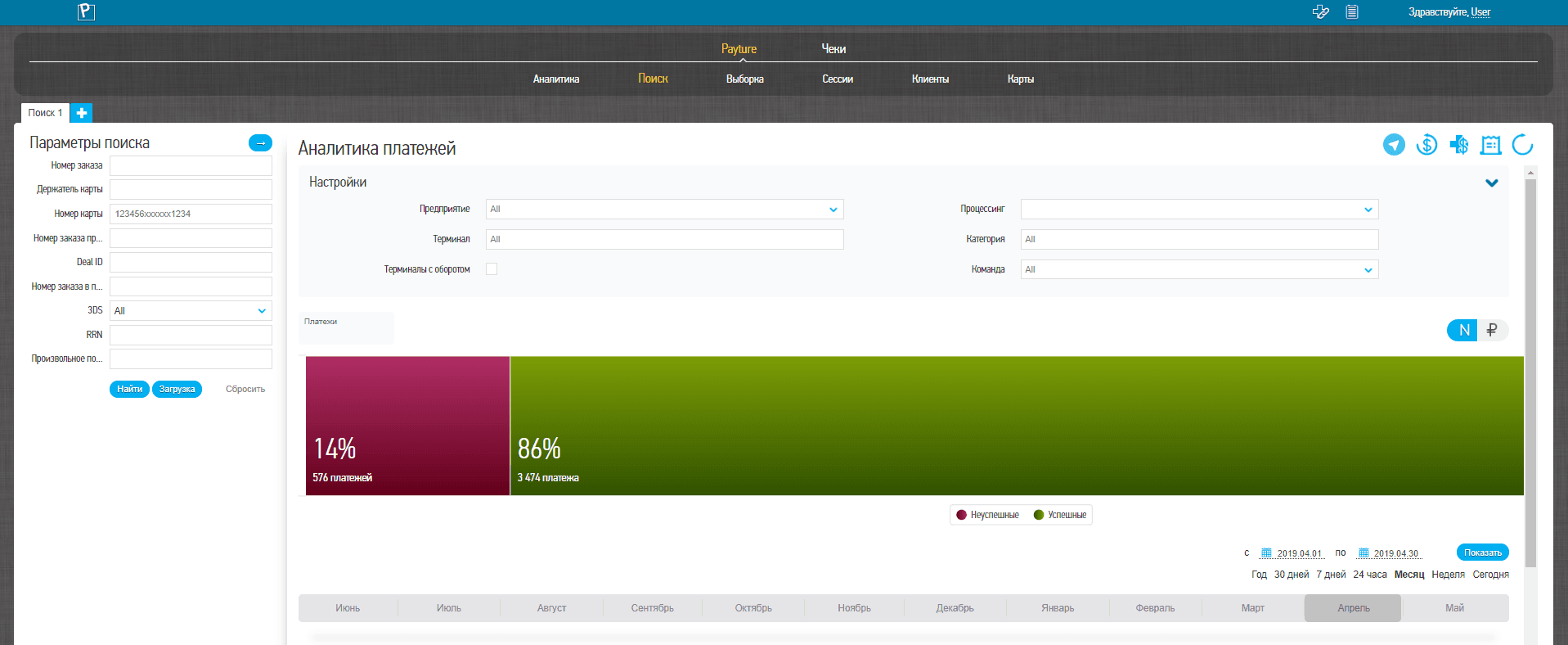 Interface in Russian
Search for a transaction by unique parameters.
| Parameter | Description |
|---|---|
| Order number | Order number (payment ID) from the payment request (corresponds to OrderId ) Preferred search parameter |
| Cardholder | Cardholder's first and last name as entered by the Customer Latin letters or spaces Note that this is an unreliable search parameter, since the Customer may mistype characters or change the name deliberately |
| Card mask | Masked card number in the format "123456xxxxxx1234". The first 6 and the last 4 digits of the card number are required. Replace unknown digits of the card number with "x" |
| Merchant order number | Order number assigned by the Payture system |
| Processing order number | Order number assigned by the payment processing center |
| 3DS | Indicates whether a 3-D Secure check was performed for this transaction |
| RRN | Unique transaction identifier Retrieval Reference Number |
| Custom field | Additional transaction field used to search for an order Passed by the Merchant in the additional parameters of the payment request The name of the additional parameter used for order search must be agreed in advance with Payture Support |
| Search field value | Field for searching for an order by one or more additional transaction parameters The parameters used for the search are passed by the Merchant in the additional parameters of the payment request The names of the additional parameters used for order search must be agreed in advance with Payture Support |
Filter
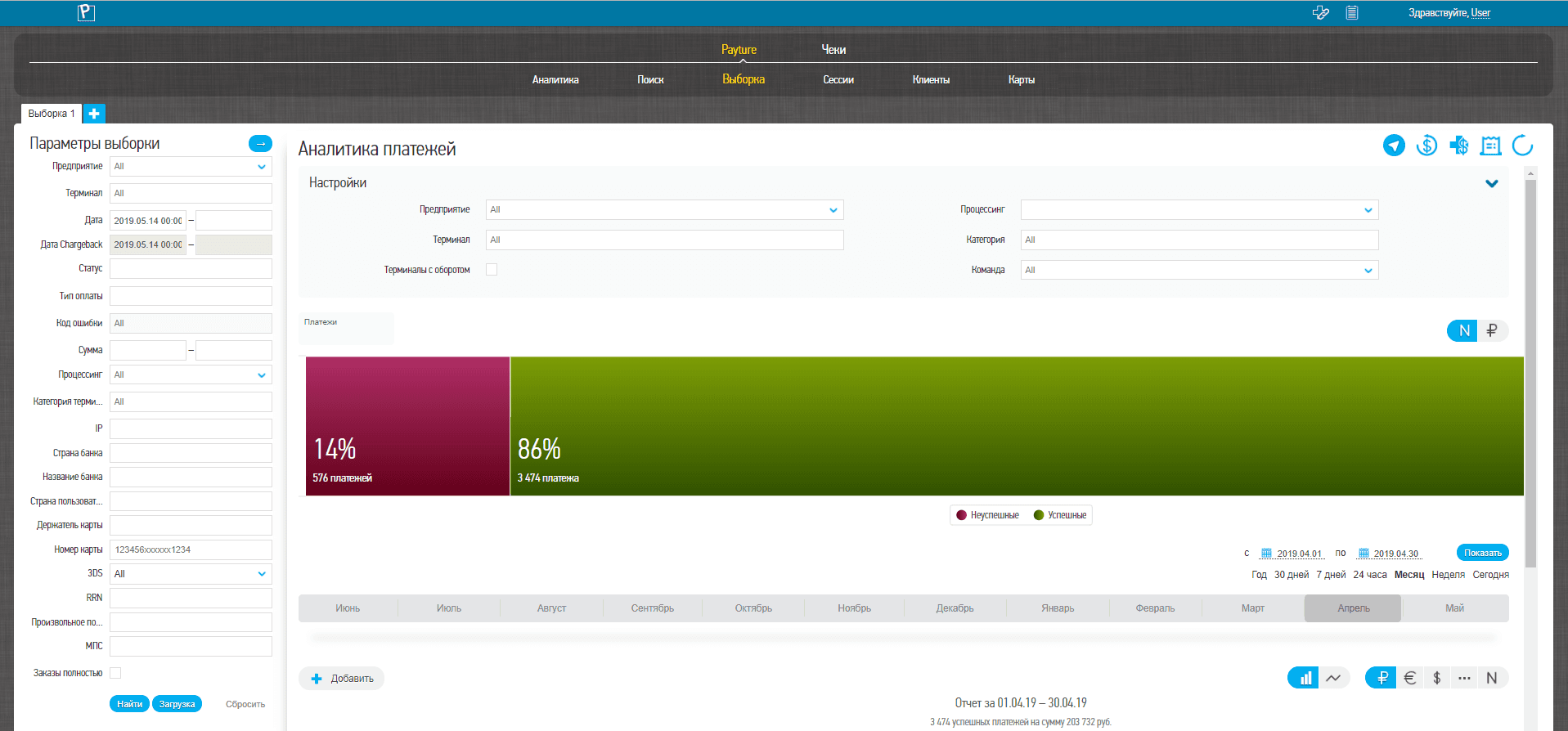 Interface in Russian
To filter transactions, the Merchant must specify the values of one or more of the available parameters.
| Parameter | Description |
|---|---|
| Merchant entity | Name of the merchant entity in the Payture system |
| Terminal | Name of the terminal to filter by Multiple terminals can be selected |
| Date | Date and time when the payments were made |
| Chargeback date | Date of the chargeback Date selection is available if "ChargeBack" is selected in the "Status" field |
| Status | Current payment state Multiple statuses can be selected |
| Payment type | Payment type selection Multiple payment types can be selected |
| Error code | Error code received when the payment failed. Multiple error codes can be selected |
| Amount | Transaction amount in rubles Kopecks are separated by a decimal point |
| IP | IP address from which the Customer accessed the Merchant's website and then the payment page |
| Bank country | Two-letter country code of the card's issuing bank |
| Bank name | Name of the card's issuing bank Based on Visa or Mastercard card scheme data |
| User country | Two-letter code of the country where the Customer was likely located at the time of the payment |
| Cardholder | Cardholder's first and last name as entered by the user Latin letters or spaces Note that this is an unreliable search parameter, since the Customer may mistype characters or change the name deliberately |
| Card mask | Masked card number in the format "123456xxxxxx1234" The first 6 and the last 4 digits of the card number are required. Replace unknown digits of the card number with "x" |
| 3DS | Indicates whether a 3-D Secure check was performed for this transaction |
| RRN | Unique transaction identifier Retrieval Reference Number |
| Custom field | Additional transaction field used to search for an order Passed by the Merchant in the CustomFields parameter of the request The name of the additional parameter used for order search must be configured in advance through Payture Support |
| Search field value | Field for searching for an order by one or more additional transaction parameters The parameters used for the search are passed by the Merchant in the additional parameters of the payment request The names of the additional parameters used for order search must be agreed in advance with Payture Support |
| Card scheme | International card scheme that issued the card Multiple card schemes can be selected |
Search results
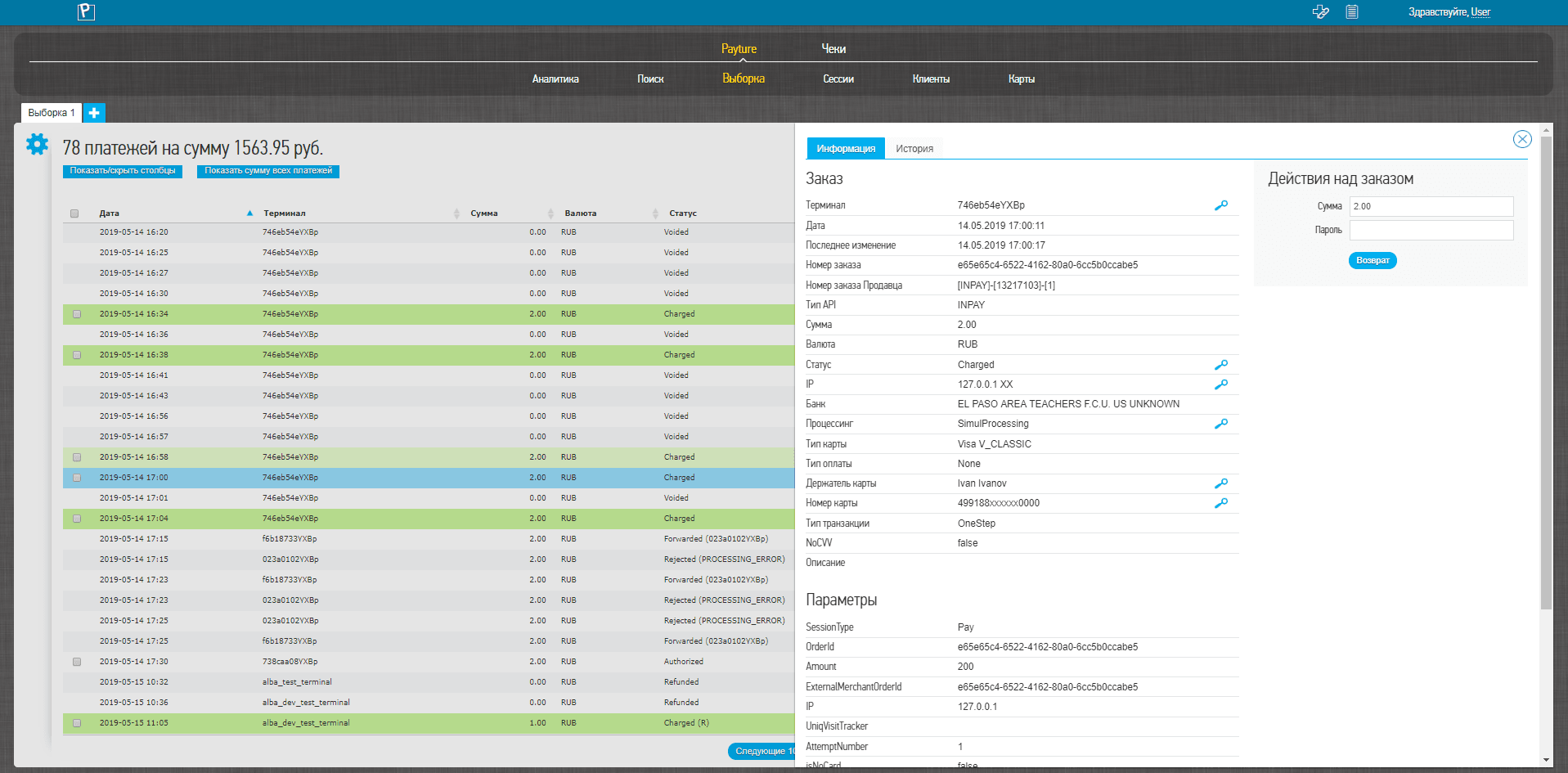 Interface in Russian
The result of a search or filter is a table of orders that match the specified parameters.
The Merchant can customize the layout of the results table: rearrange columns or choose which columns to display.
Use the "Search" field above the table for a quick search of orders in the table by any parameter.
| Parameter | Description |
|---|---|
| Date | Date and time of the payment |
| Last change | Last operation performed on the payment |
| Terminal | Terminal name in the Payture system |
| Amount | Transaction amount in rubles Kopecks are separated by a decimal point |
| Currency | Three-letter code of the payment currency |
| Hold amount | Amount of funds held on the Customer's card |
| Status | Current payment state |
| Payment type | Payment type selection |
| ReasonCode | Reason for the payment chargeback The reason is specified by the Merchant in the Merchant Account when setting the payment status to "ChargeBack" |
| RRN | Unique transaction identifier Retrieval Reference Number |
| Error code | Error description Present only for unsuccessful payments |
| Cardholder | Cardholder's first and last name as entered by the Customer |
| Card number | Masked card number Contains the first 6 and the last 4 digits of the card number; the remaining digits are replaced with "x" |
| Order number | Order number (payment ID) from the payment request (corresponds to OrderId ) |
| Merchant order number | Order number assigned by the Payture system |
| User Id | Customer identifier in the Merchant's system Present if the Merchant passes it in the additional transaction parameters in the format: CustomerId=Value |
| Template | Name of the template used for the payment |
| 3DS | Indicates whether a 3-D Secure check was performed for this transaction |
| Authorization code | Payment authorization code |
| Processing order number | Order number assigned by the payment processing center |
| IP | IP address from which the Customer accessed the Merchant's website and then the card details entry page |
| Bank | Name and country code of the issuing bank of the card used for the payment attempt Based on Visa or Mastercard card scheme data |
| Custom field | Additional transaction field used to search for an order Passed by the Merchant in the CustomFields parameter of the request The name of the additional parameter used for order search must be configured in advance through Payture Support |
Payment details
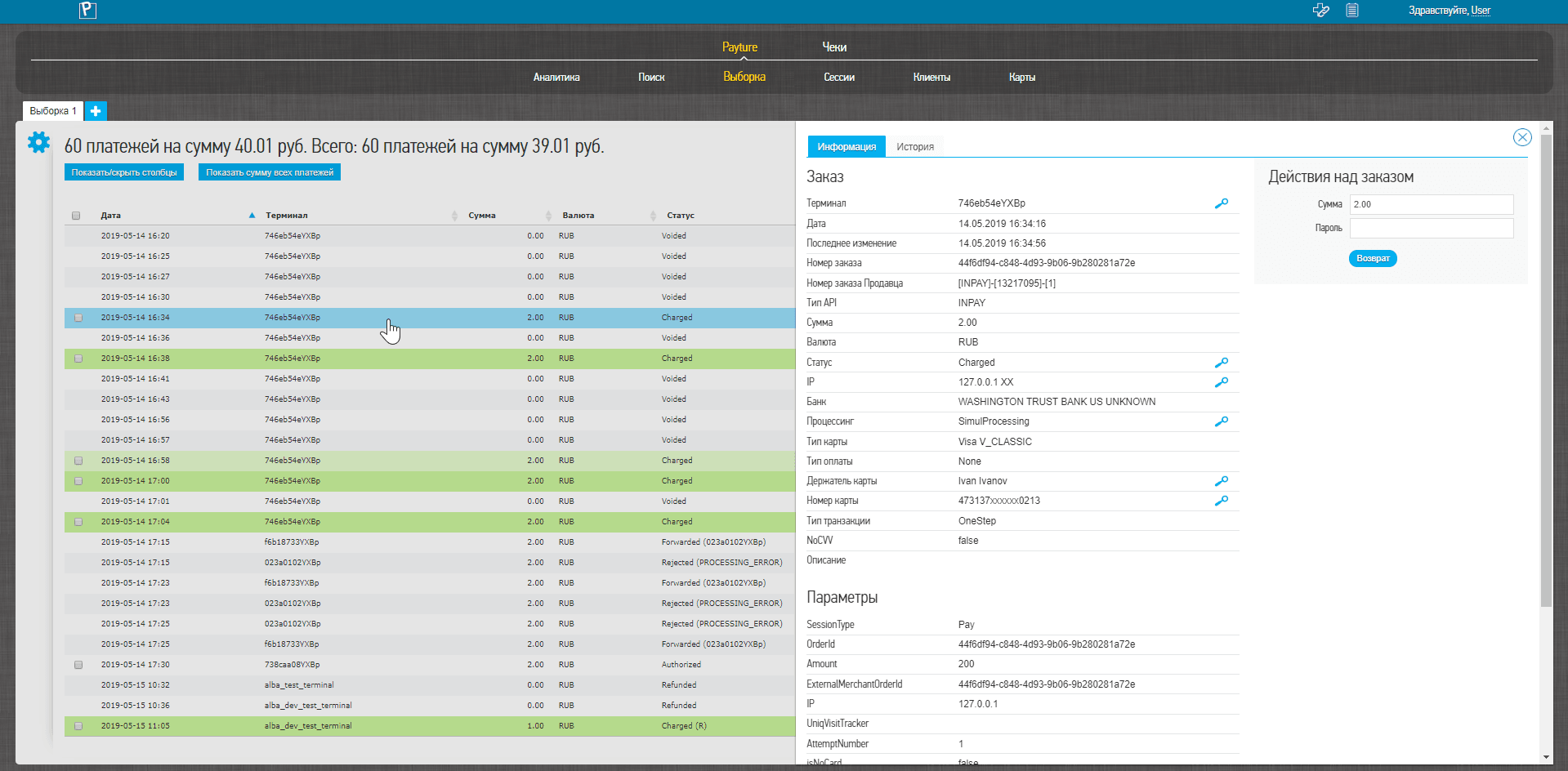 Interface in Russian
To view all parameters of a transaction, select the payment in the results table.
The "Information" section shows all parameters of the selected transaction:
| Parameter | Description |
|---|---|
| Terminal | Terminal name in the Payture system |
| Date | Date and time of the payment |
| Last change | Last operation performed on the payment |
| Order number | Order number (payment ID) from the payment request (corresponds to OrderId ) |
| Merchant order number | Order number assigned by the Payture system |
| API type | Type of API used to make the payment |
| Amount | Transaction amount in rubles Kopecks are separated by a decimal point |
| Currency | Three-letter code of the payment currency |
| Status | Current payment state |
| User IP | IP address from which the Customer accessed the Merchant's website and then the card details entry page. Two-letter country code based on the Customer's IP address The country where the Customer was likely located at the time of the payment |
| Bank | Name and country code of the issuing bank of the card used for the payment attempt Based on Visa or Mastercard card scheme data |
| Card type | Card scheme and card product name |
| Payment type | Payment type selection |
| Cardholder | Cardholder's first and last name as entered by the Customer |
| Card number | Masked card number Contains the first 6 and the last 4 digits of the card number; the remaining digits are replaced with "x" |
| Transaction type | Indicates whether the transaction was one-step (OneStep) or two-step (TwoStep) |
| No CVV | Whether the transaction was made without entering the CVV |
| Description | Additional order description Passed by the Merchant in the payment request |
Transaction change history
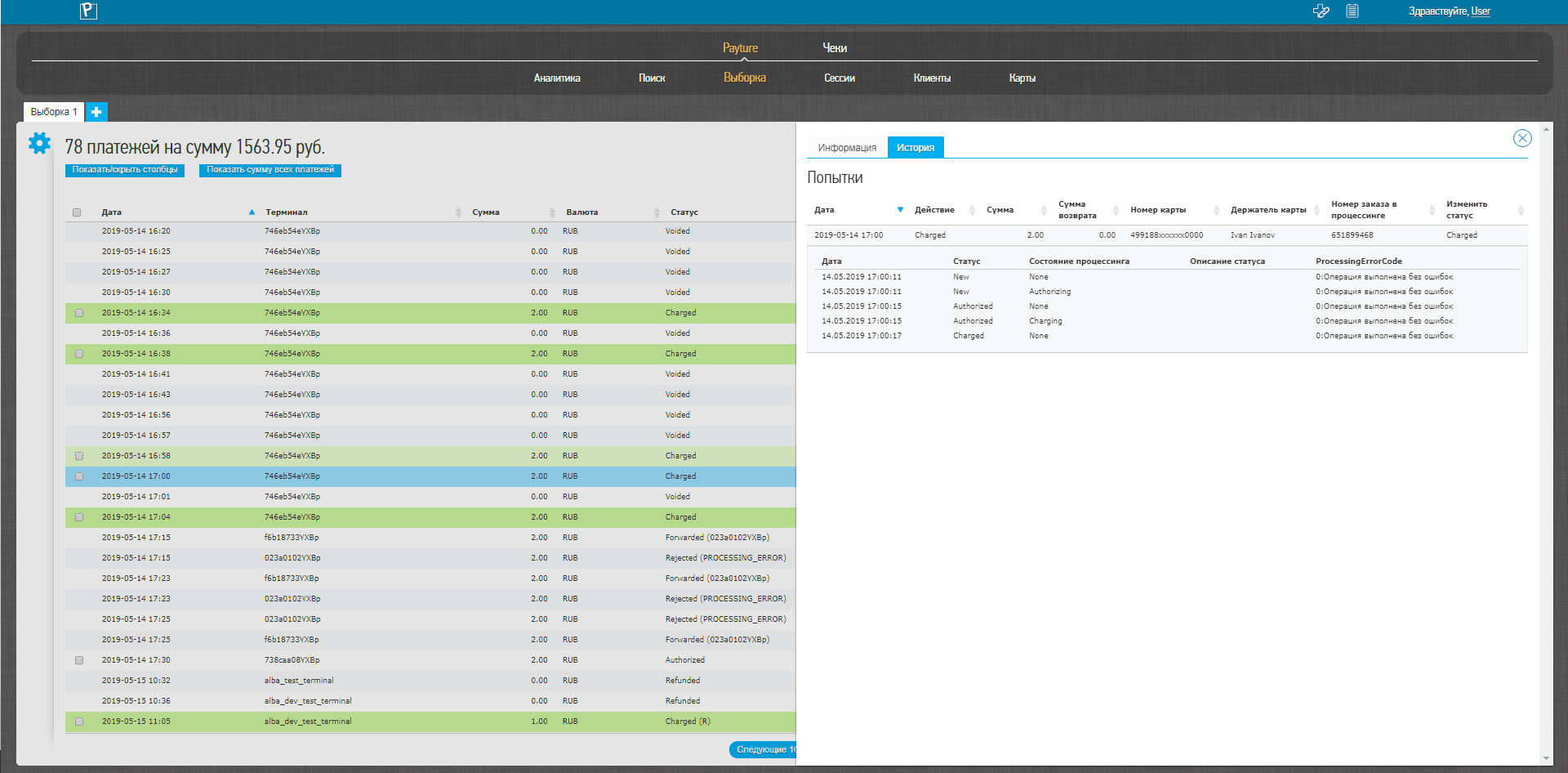 Interface in Russian
To view the change history of a transaction, go to the "History" section, which shows a table of operations in chronological order.
| Parameter | Description |
|---|---|
| Date | Date and time of the operation |
| Action | Payment state |
| Amount | Transaction amount in rubles Kopecks are separated by a decimal point |
| Amount | Refund amount Kopecks are separated by a decimal point |
| Card | Masked card number Contains the first 6 and the last 4 digits of the card number; the remaining digits are replaced with "x" |
| Cardholder | Cardholder's first and last name as entered by the Customer |
| Processing order number | Order number assigned by the payment processing center |
To view the history of an attempt, select a row in the table. Below it, you will see the date, the payment state at the time of the operation, and its description in case of an error or decline.
Sessions
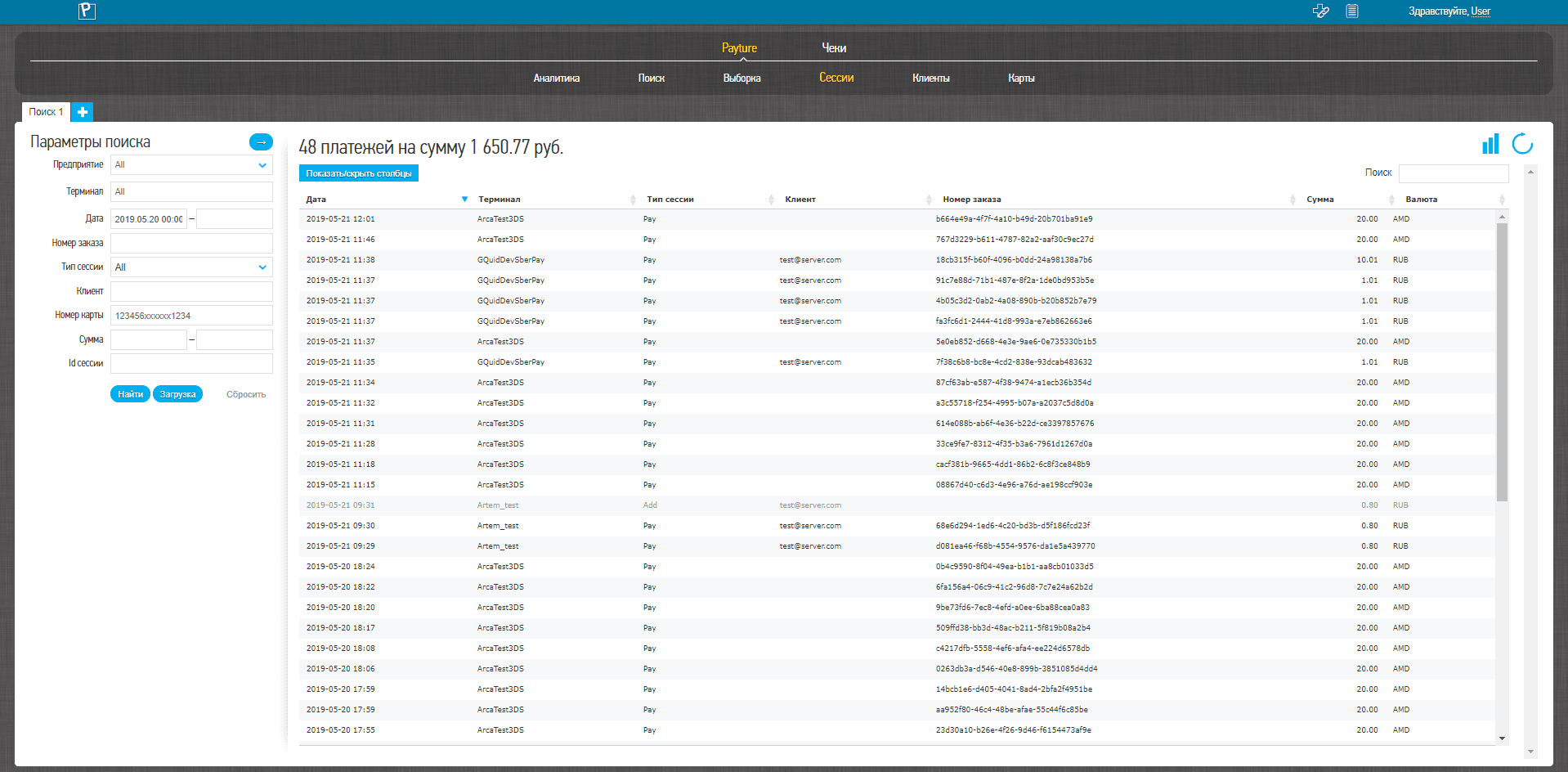 Interface in Russian
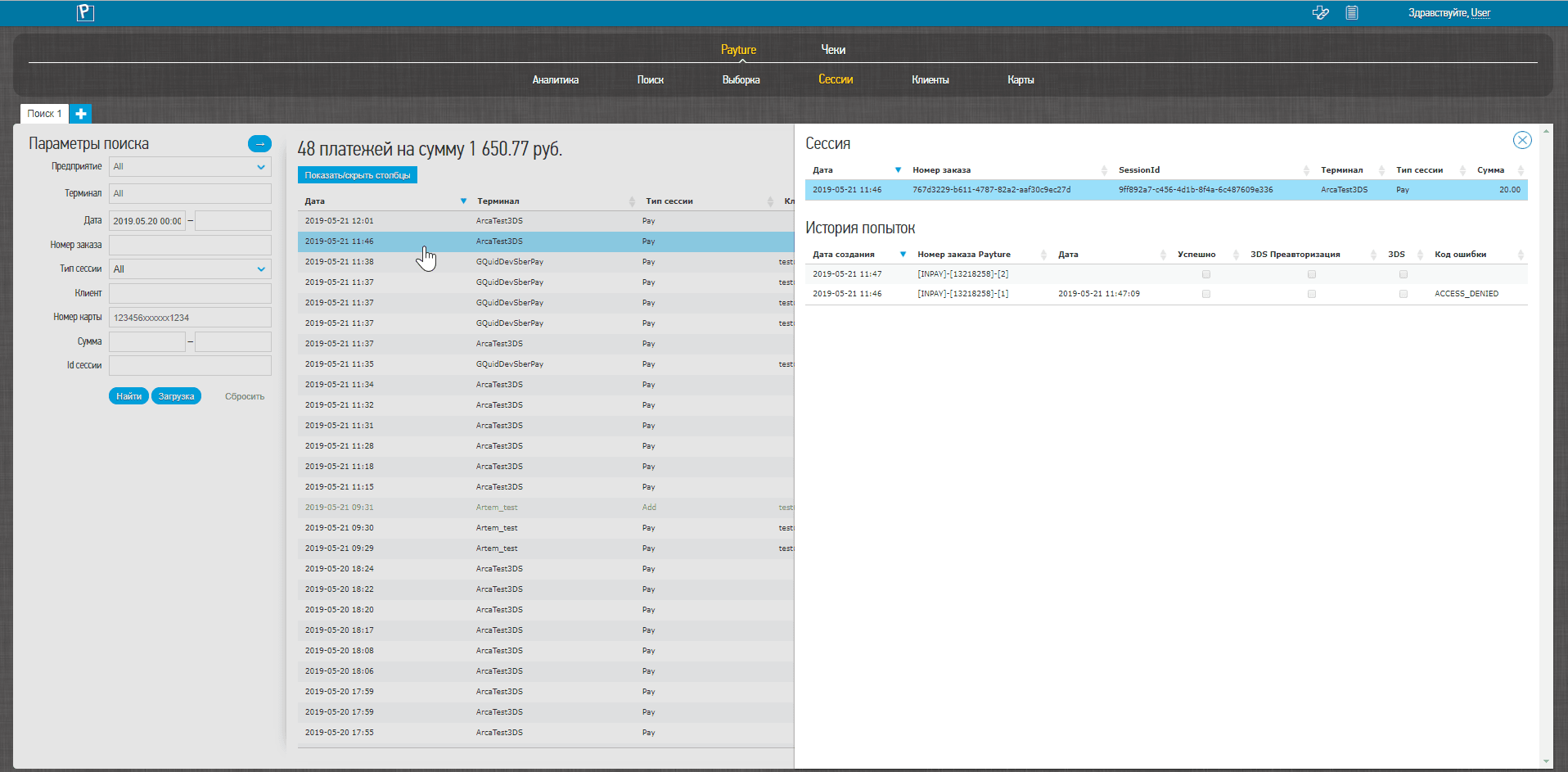 Interface in Russian
This service lets you search for transactions (including recurring ones) and view the Customer's payment attempts within a payment session.
To search for payment sessions, the Merchant must specify the values of one or more of the available transaction parameters.
| Parameter | Description |
|---|---|
| Merchant entity | Name of the merchant entity in the Payture system |
| Terminal | Terminal name Multiple terminals can be selected |
| Date | Date and time when the payments were made |
| Order number | Order number (payment ID) from the payment request (corresponds to OrderId ) Lets you search for a payment |
| Session type | Operation type: Pay — one-step payment Block — two-step payment Add — card binding |
| Customer | Customer identifier Corresponds to the VWUserLgn parameter in the eWallet API |
| Card number | Masked card number in the format "123456xxxxxx1234" Specify the first 6 and the last 4 digits of the card number. Replace unknown digits of the card number with "x" |
| Amount | Transaction amount in rubles Kopecks are separated by a decimal point |
| Session Id | Unique session identifier in the Payture system |
Session search results
The search result is a table of transactions that match the specified parameters.
The Merchant can customize the layout of the results table: rearrange columns or choose which columns to display.
The table contains the following fields:
| Parameter | Description |
|---|---|
| Date | Date and time of the payment Of the last change to the payment |
| Terminal | Terminal name in the Payture system |
| Session type | Operation type: Pay — one-step payment Block — two-step payment Add — card binding |
| Customer | Customer identifier Corresponds to the VWUserLgn parameter in the eWallet API |
| Card | Masked card number Contains the first 6 and the last 4 digits of the card number; the remaining digits are replaced with "x" |
| Order number | Order number (payment ID) from the payment request (corresponds to OrderId ) |
| Amount | Transaction amount in rubles Kopecks are separated by a decimal point |
| Customer Id | Unique Customer identifier in the Payture system |
| Card Id | Unique card identifier in the Payture system |
| Card number | Masked card number Contains the first 6 and the last 4 digits of the card number; the remaining digits are replaced with "x" |
| Cardholder | Cardholder's first and last name as entered when the card was registered |
| Card expiration date | Month and year of the card's expiration date |
| Confirmation code | When SendCode is used |
| Currency | Three-letter code of the payment currency |
Transaction details
To view the parameters and the history of payment attempts, select a transaction in the list.
| Parameter | Description |
|---|---|
| Date | Date and time of the first operation on this transaction |
| Order number | Transaction number in the Merchant's system |
| Session Id | Unique session identifier in the Payture system |
| Terminal | Terminal name in the Payture system |
| Session type | Operation type |
| Amount | Transaction amount in rubles |
You can view the attempt history for a session.
| Parameter | Description |
|---|---|
| Creation date | Date and time of the operation within the transaction |
| Payture order number | Order number assigned by Payture Contains the sequence number of the attempt |
| Date | Date of the last change |
| Successful | Operation success flag |
| 3DS pre-authorization | Whether the Customer was redirected to the issuing bank's ACS page for 3DS authentication |
| 3DS | Whether a 3-D Secure check was performed for this transaction |
| Error code | Error code in case of a decline or an error while processing the transaction |
Customers
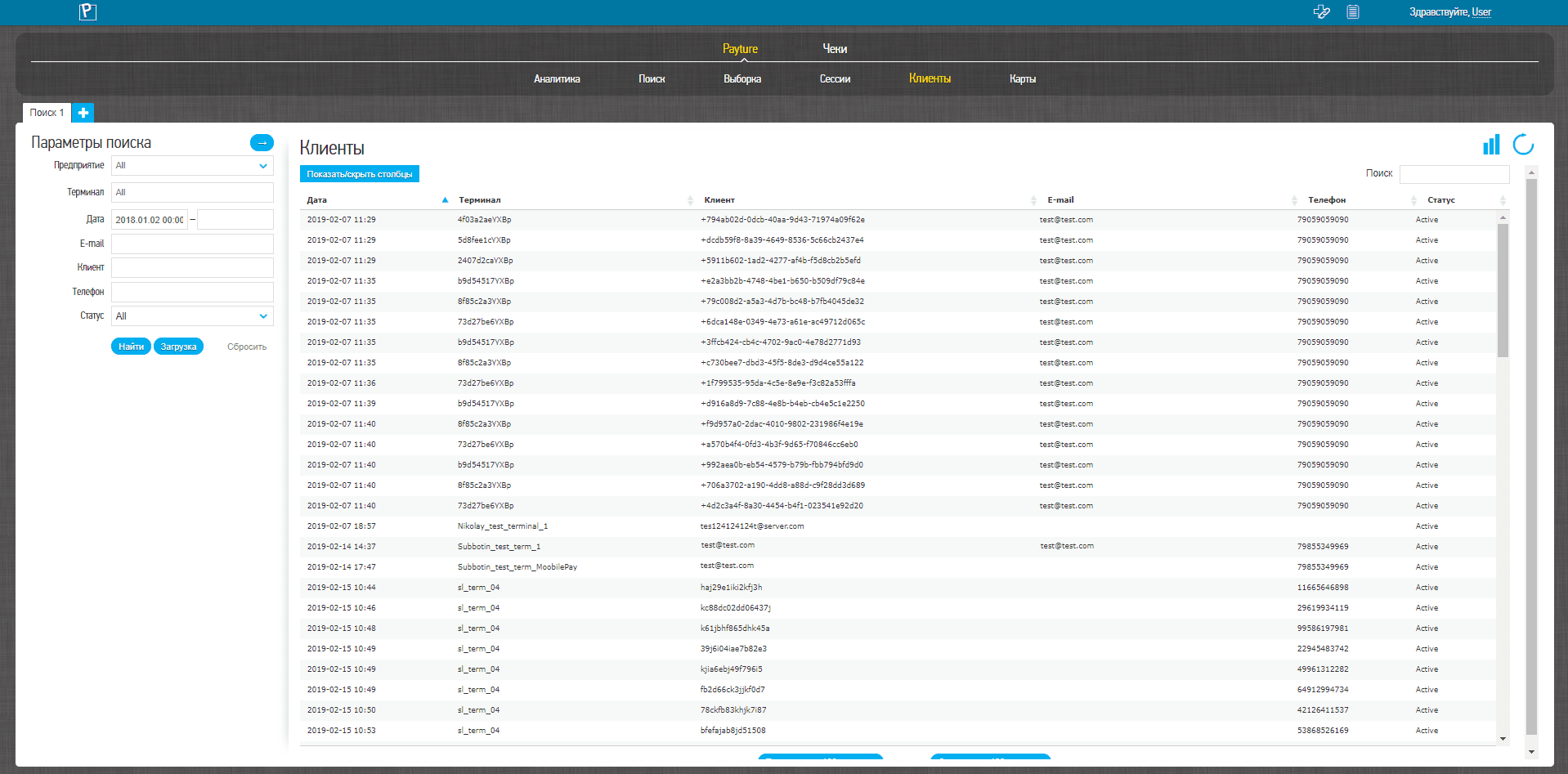 Interface in Russian
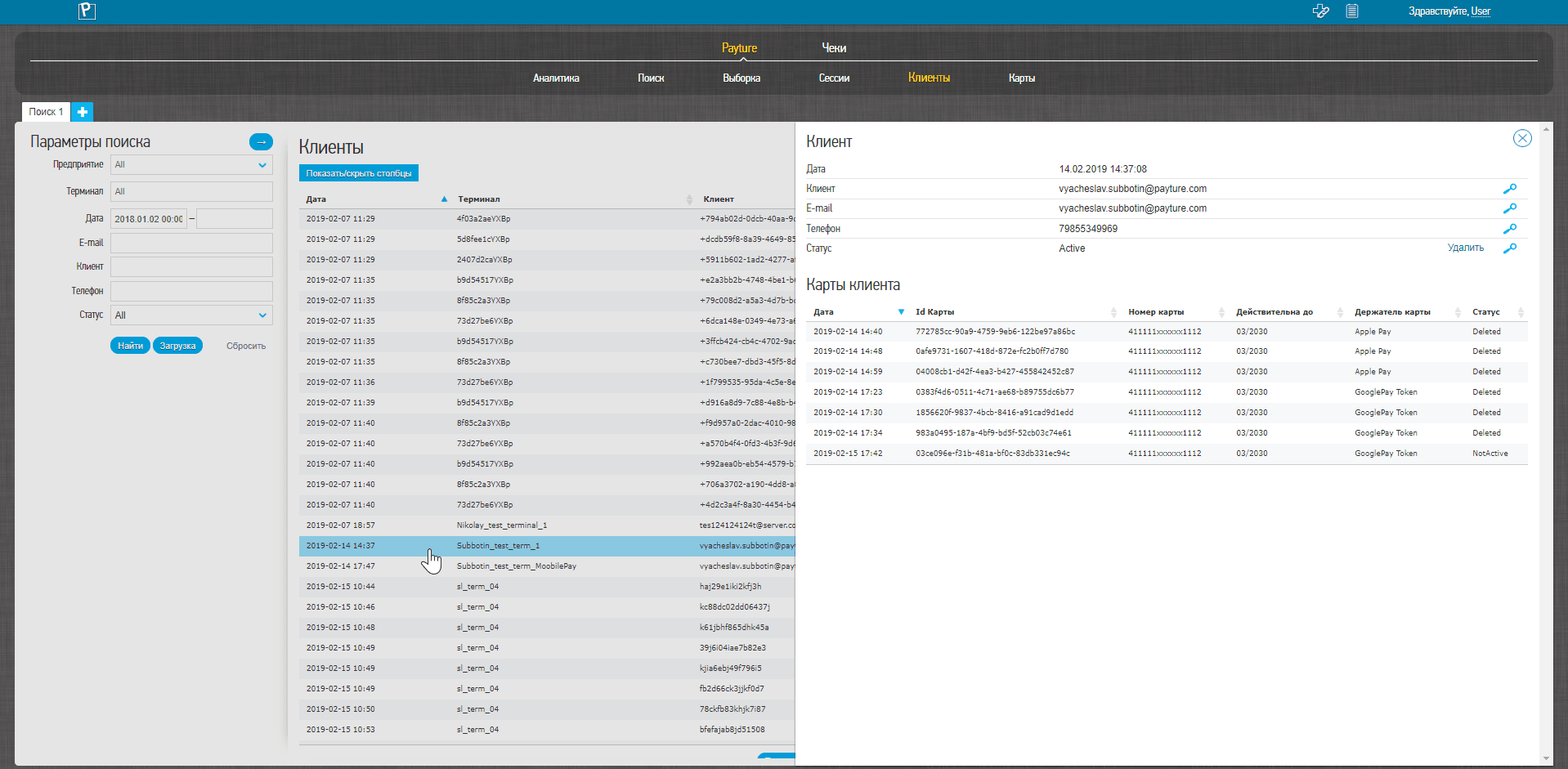 Interface in Russian
This service is available only to Merchants using the eWallet interface.
This service lets the Merchant filter registered Customers.
To search for registered Customers, specify the values of one or more Customer parameters. The preferred search is by Customer identifier, which should be entered in the "Customer" field.
| Parameter | Description |
|---|---|
| Merchant entity | Name of the merchant entity in the Payture system |
| Terminal | Name of the terminal to filter by Multiple terminals can be selected |
| Date | Date and time when the payments were made |
| Customer's email address | |
| Customer | Customer identifier Corresponds to the VWUserLgn parameter in the eWallet API |
| Phone | Customer's phone number Specified in international format (digits only, no spaces): [country code][operator code][subscriber number] |
| Status | Current state of the Customer profile All — Customer profiles with any status Active — the Customer is registered and their profile is active Deleted — the Customer profile has been deleted |
Search results
The search result is a table of Customers that match the specified parameters.
The Merchant can customize the layout of the results table: rearrange columns or choose which columns to display.
The table contains the following fields:
| Parameter | Description |
|---|---|
| Date | Date and time the Customer was registered |
| Terminal | Name of the terminal the Customer was linked to |
| Customer | Customer identifier Corresponds to the VWUserLgn parameter in the eWallet API |
| Customer's email address | |
| Phone | Customer's phone number |
| Status | Current status of the Customer profile Active — the Customer is registered in the gateway and their profile is active Deleted — the Customer profile has been deleted |
Select a Customer to view detailed information about them.
The "Cards" section contains information about all of the Customer's cards:
| Parameter | Description |
|---|---|
| Date | Date and time the card was added |
| Card Id | Card identifier in the Payture system |
| Card number | Masked card number in the format "123456xxxxxx7890" The first 6 and the last 4 digits of the card number |
| Valid thru | Card expiration date |
| Cardholder | Cardholder's first and last name as entered when the card was registered |
| Status | Current card status Not Active — the card is registered but not activated Not Active 3DS — the card is registered but the Customer has not completed 3DS authentication Is Active — the card is registered and activated Deleted — the card has been deleted |
The Merchant can delete a Customer by selecting the Customer and clicking "Delete" next to their status. All of the Customer's cards will also be deleted.
Cards
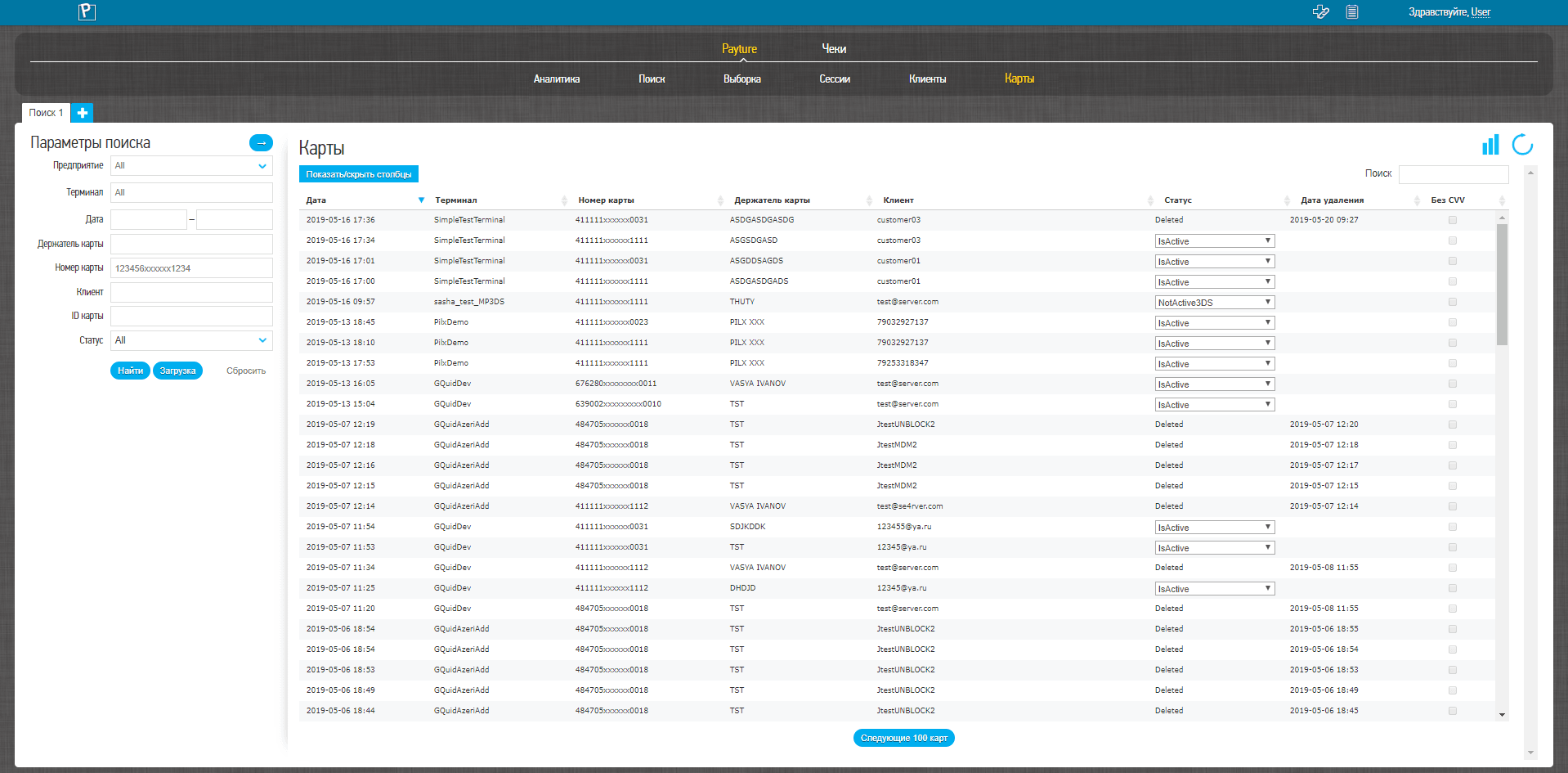 Interface in Russian
This service is available only to Merchants using the eWallet interface.
This service lets you filter Customers' saved cards.
To filter registered cards, specify the values of one or more parameters. The preferred search is by Customer identifier and/or card mask, which should be entered in the "Customer" and "Card" fields respectively.
| Parameter | Description |
|---|---|
| Merchant entity | Name of the merchant entity in the Payture system |
| Terminal | Name of the terminal to filter by Multiple terminals can be selected |
| Date | Date and time the card was saved |
| Cardholder | Cardholder's first and last name as entered by the Customer Latin letters or spaces Note that this is an unreliable search parameter, since the Customer may mistype characters or change the name deliberately |
| Card number | Masked card number in the format "123456xxxxxx1234" Specify the first 6 and the last 4 digits of the card number. Replace unknown digits of the card number with "x" |
| Customer | Customer identifier Corresponds to the VWUserLgn parameter in the eWallet API |
| Status | Current card status Not Active — the card is registered but not activated Not Active 3DS — the card is registered but the Customer has not completed 3DS authentication Is Active — the card is registered and activated Deleted — the card has been deleted |
Search results
The search result is a table with detailed information about each card.
The Merchant can customize the layout of the results table: rearrange columns or choose which columns to display.
| Parameter | Description |
|---|---|
| Date | Date and time the card was added |
| Terminal | Name of the terminal the card was linked to |
| Card Id | Card identifier in the Payture system |
| Card number | Masked card number in the format "123456xxxxxx7890" The first 6 and the last 4 digits of the card number |
| Valid thru | Card expiration date |
| Cardholder | Cardholder's first and last name as specified when the card was added |
| Customer | Identifier of the Customer the card is linked to |
| Status | Current card status |
| Card deletion date | If the card has the "Deleted" status |
| No CVV | Shows whether payments with this card can be made without entering the CVV |
The Merchant can change a card's status by selecting any of the available status options in the corresponding field.
Operations in the Merchant Account
Payture Merchant Account provides the Merchant with an interface for performing standard operations:
| Generating payment links | Creating a link the Customer can follow to make a payment |
| Making a payment | Making a payment by entering card details in the Merchant Account |
| Releasing a hold | Full release of previously held funds |
| Charge | Partial or full capture of previously held funds |
| Refund | Partial or full refund of charged funds |
| Bulk operations | Releasing a hold, capturing or refunding multiple orders |
| Refund confirmation | Generating a refund confirmation letter |
| Generating a report | Generating a payment report |
| Registering the Telegram bot | Connecting a bot to receive payment analytics in Telegram |
Generating payment links
This service lets the Merchant generate payment links and, if needed, send them to the Customer.
The time allowed for paying by link is limited.
-
In the additional menu of the Merchant Account, click "Generate payment links"
 .
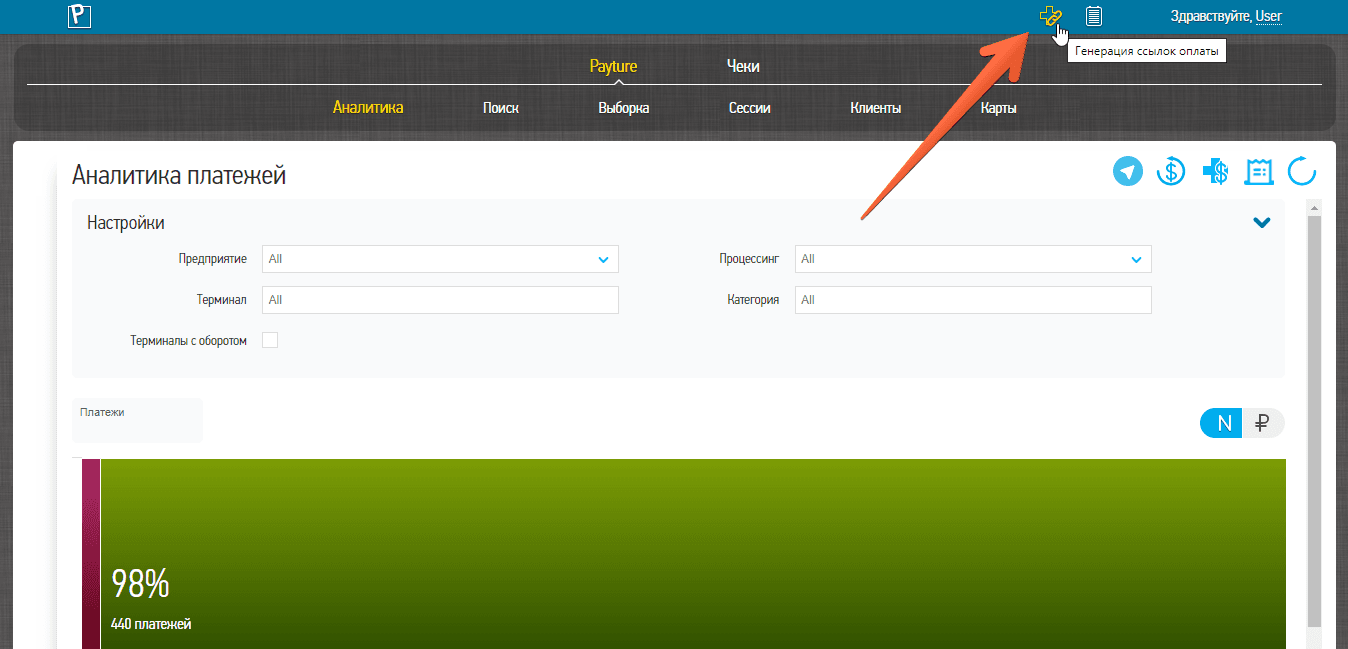 Interface in Russian
-
Select the interface (InPay or eWallet), specify the required parameters and click "Get link". The payment link will be generated in the Merchant Account and, if needed, sent to the Customer.
If fiscal receipt generation (under Federal Law No. 54-FZ, the Russian law on online cash registers) is enabled for the terminal, you must fill in the receipt information. The receipt will be generated automatically when the payment succeeds.
- You can track the Customer's payment attempts in the "Payture" → "Sessions" section. After the first attempt, the payment results will be available in the "Payture" → "Search" or "Filter" section.
For InPay:
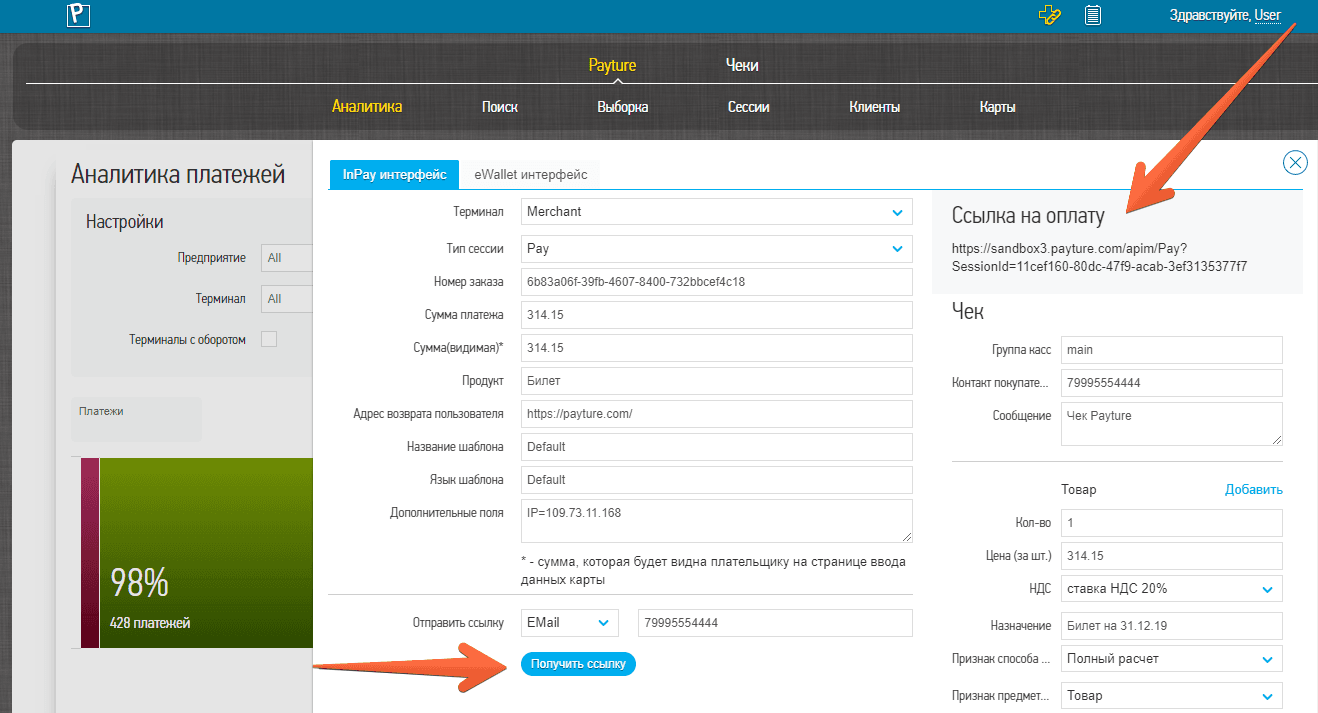 Interface in Russian
For eWallet:
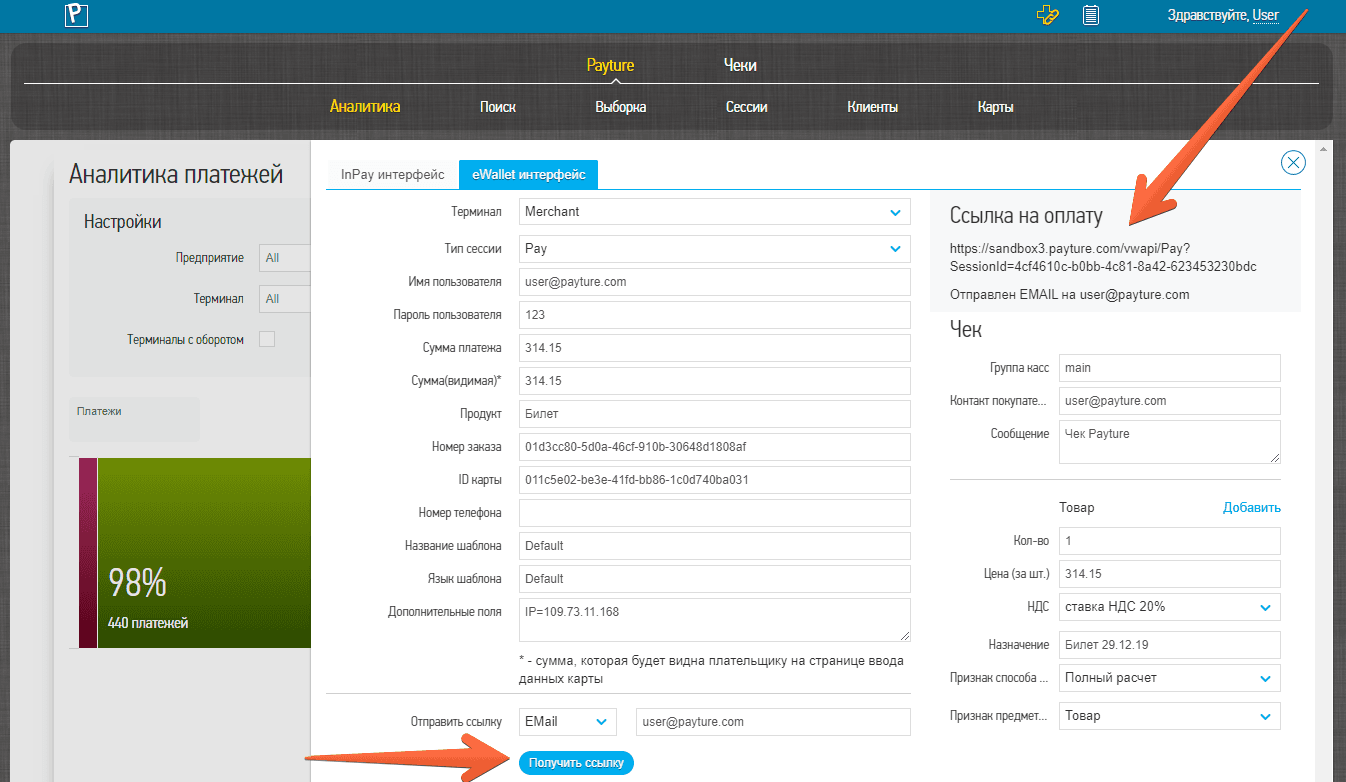 Interface in Russian
InPay parameters
To generate a payment link, fill in all required fields and, if needed, the optional ones.
| Parameter | Description | Required |
|---|---|---|
| Terminal | Name of the Merchant terminal through which the payment is to be made | Yes |
| Session type | Payment type: Pay — charge (one-step payment) Block — hold (two-step payment) | Yes |
| Order number | Unique order number in the Merchant's system | Yes |
| Payment amount | Payment amount in rubles, with up to 2 digits after the decimal point | Yes |
| Amount (displayed) | Amount shown to the Customer on the payment page. Required if the payment template contains the {Total} placeholder A string; may contain separators or additional characters | No |
| Product | Product name shown to the Customer on the payment page. Required if the payment template contains the {Product} placeholder | No |
| Customer return URL | URL of the page the Customer is redirected to after a successful payment | No |
| Template name | Name of the payment page template to use Used if the Merchant has several templates If not specified, the template named "Default" is used | No |
| Template language | Language of the payment page template Used if one template is used in several languages If not passed, the language of the "Default" template is used | No |
| Additional transaction fields | Additional transaction fields Specified in the format: Name1=Value1;Name2=Value2;... | No |
| Send link | Customer's email or phone number to which the payment link will be sent Phone number in the format 79995554444 | No |
eWallet parameters
This form lets you generate payment links, as well as links for adding new cards to the Customer's wallet.
| Parameter | Description | Required (Pay or Block) | Required (Add) |
|---|---|---|---|
| Terminal | Name of the Merchant terminal through which the payment is to be made or the card is to be saved | Yes | Yes |
| Session type | Operation type: Pay — charge (one-step payment) Block — hold (two-step payment) Add — card binding | Yes | Yes |
| User name | Customer identifier Corresponds to the VWUserLgn parameter in the eWallet API If the user does not exist, a new user with the specified identifier will be created | Yes | Yes |
| User password | Additional parameter for accessing the Customer's private information (the Customer's password) Corresponds to the VWUserPsw parameter in the eWallet API | Yes | Yes |
| Payment amount | Payment amount in rubles, with up to 2 digits after the decimal point | Yes | No |
| Amount (displayed) | Amount shown to the Customer on the payment page. Required if the payment template contains the {Total} placeholder A string; may contain separators or additional characters | No | No |
| Product | Product name shown to the Customer on the payment page. Required if the payment template contains the {Product} placeholder | No | No |
| Order number | Unique order number in the Merchant's system | Yes | No |
| Card ID | Card identifier in the Payture system, or the value FreePay This card's details will be prefilled on the payment page. The Customer can always choose another card from the wallet or pay with a new card With FreePay, the card details fields on the payment page will be empty | Yes | No |
| Phone number | Customer's phone number Additional information about the Customer | No | No |
| Template name | Name of the payment page template to use Used if the Merchant has several templates If not specified, the template named "Default" is used | No | No |
| Template language | Language of the payment page template Used if one template is used in several languages. If not passed, the language of the "Default" template is used | No | No |
| Additional transaction fields | Additional transaction fields Specified in the format: Name1=Value1;Name2=Value2;... | No | No |
| Send link | Customer's email or phone number to which the payment link will be sent Phone number in the format 79995554444 | No | No |
Making a payment
This service lets the Merchant make a payment on its own by entering the Customer's payment card details.
We recommend using this service when, for some reason, the cardholder cannot pay for goods or services on their own through the Merchant's official website. In such cases, a member of the Merchant's support team can assist the Customer.
To make a payment:
- Go to the "Payture" → "Analytics" tab and click "Create new payment"
 .
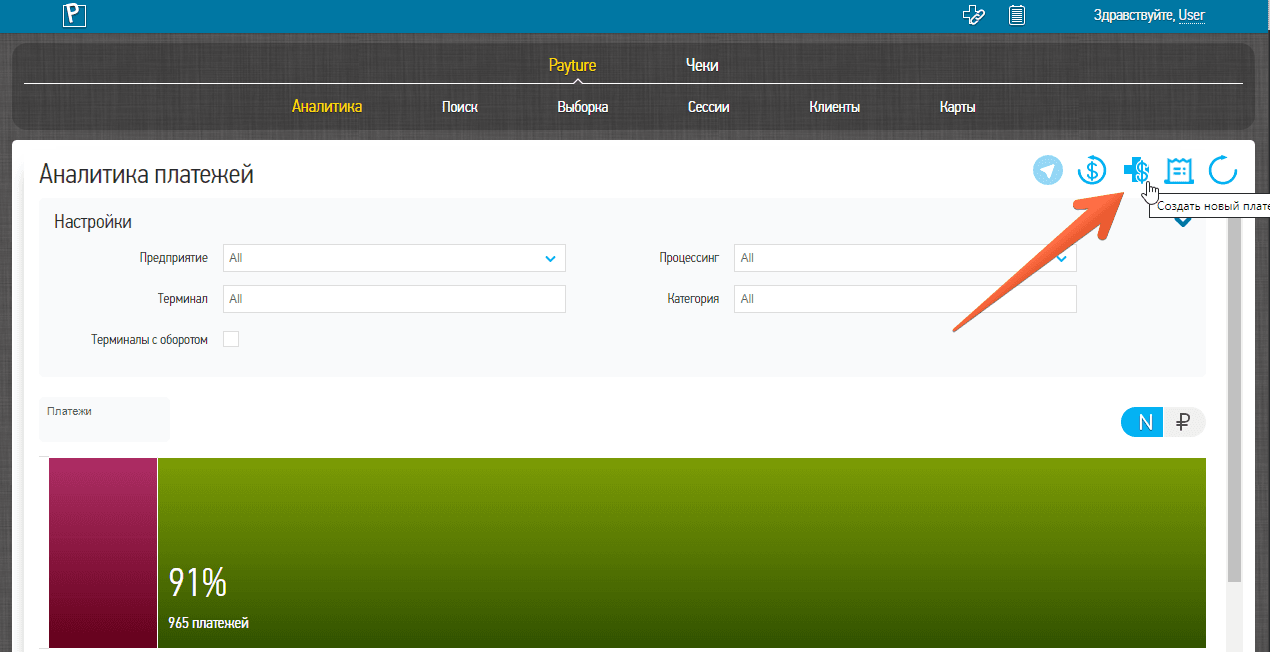 Interface in Russian
- Fill in the required fields and click "Pay".
If fiscal receipt generation is enabled for the terminal, you must fill in the receipt information. The receipt will be generated automatically when the payment succeeds.
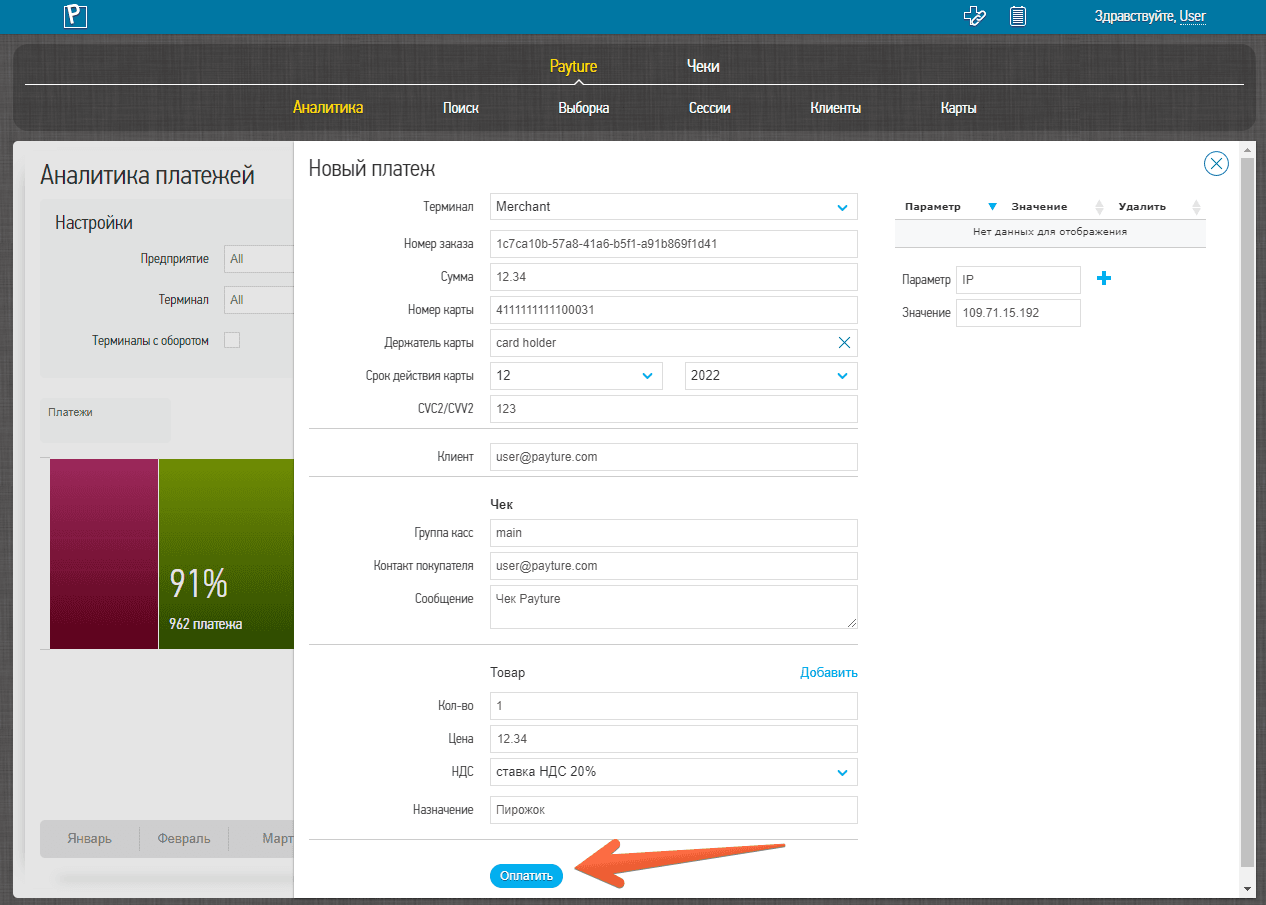 Interface in Russian
- Once the payment is processed, a message with the result appears: whether the payment succeeded or failed. If the payment succeeded, a window with the transaction details is shown; in case of a decline or an error, the error code is shown.
Payment parameters
| Parameter | Description | Required |
|---|---|---|
| Terminal | Name of the Merchant terminal through which the payment is to be made | Yes |
| Order number | Unique order number (payment ID) | Yes |
| Payment amount | Payment amount in rubles, with up to 2 digits after the decimal point | Yes |
| Card number | Customer's card number without spaces | Yes |
| Cardholder | Cardholder's first and last name Latin letters or spaces only | Yes |
| Card expiration date | Month and year of the card's expiration date | Yes |
| CVC2/CVV2 | Card verification code | Yes |
| Customer | Additional information about the Customer | No |
| Additional parameters | The Merchant can add one or more custom parameters and their values | No |
| Receipt parameters | The receipt parameters follow the format of the parameters of a receipt without a payment Receipt parameters must be filled in if fiscal receipt generation is enabled | No |
Releasing a hold
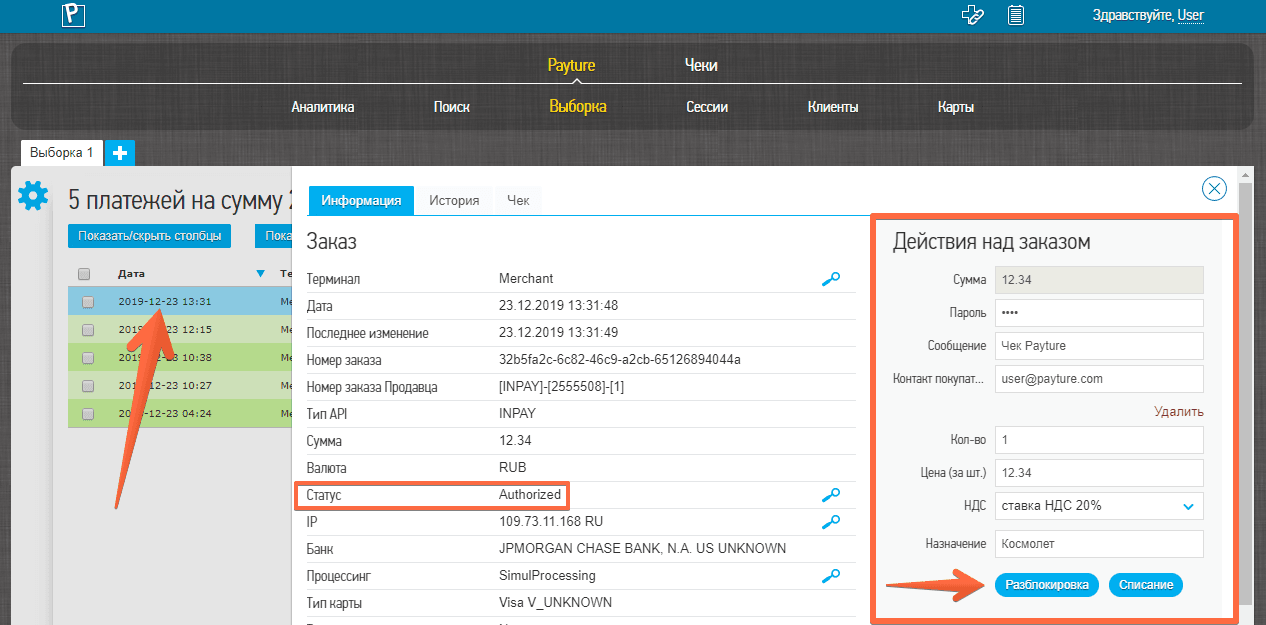
In the Merchant Account, the Merchant can release funds held on the Customer's card:
- a hold can be released only for orders with the Authorized status
- a hold can be released only for the full held amount
- if a receipt was generated with the payment, a "Sale refund" receipt with all items of the original receipt is generated automatically after the hold is released
To release a hold:
- On the "Search" or "Filter" tab, select the required order with the Authorized status.
- In the "Order actions" window, enter the password for performing operations in the Merchant Account. The password is provided together with the test or production access parameters. If a receipt was generated with the payment, the Merchant will see the receipt delivery parameters and all receipt items.
- If needed, the Merchant can change the Customer's contact for sending the refund receipt and the subject of the receipt message. Changing the receipt items is not recommended!
- Click "Unblock". If the operation succeeds, the order changes to the Voided status. All receipts generated for the order will be available in the order information in the "Receipt" window, as well as in the "Receipts" section of the Merchant Account.
 Interface in Russian
Charge
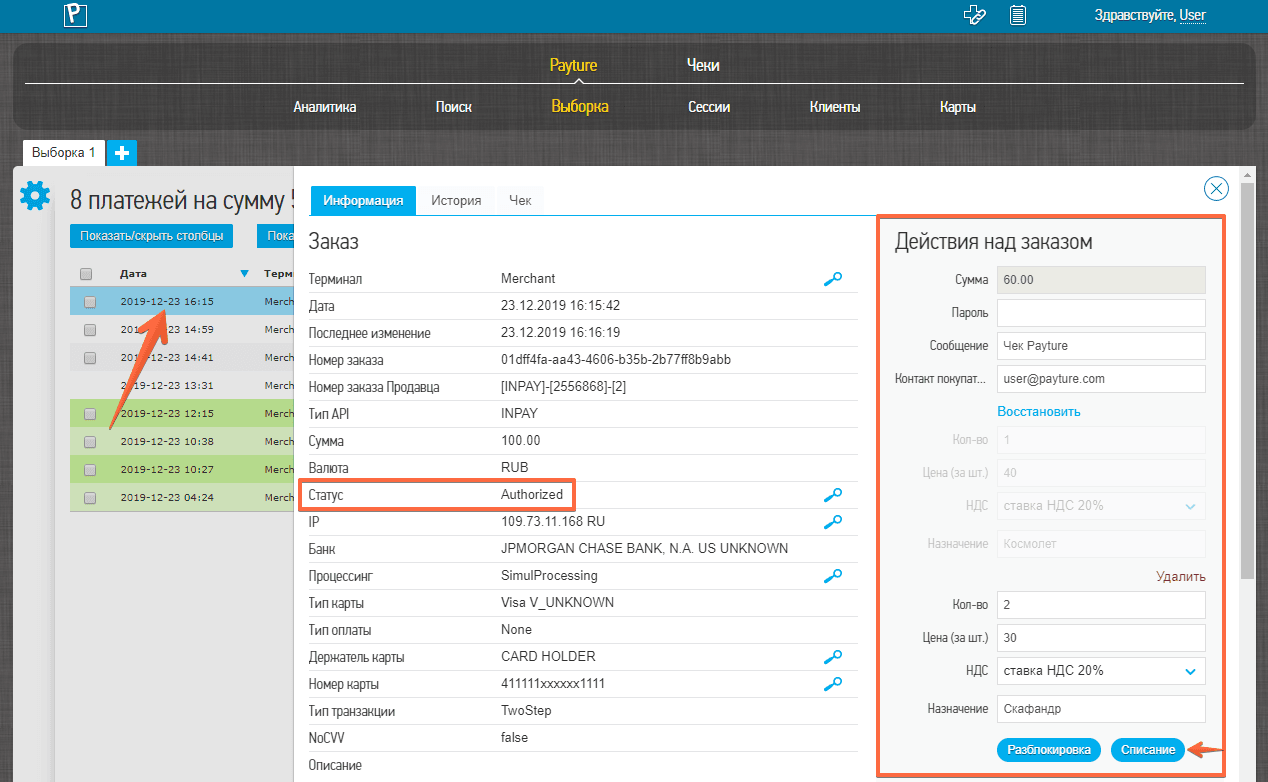
In the Merchant Account, the Merchant can capture funds previously held on the Customer's card:
- a charge is available only for orders with the Authorized status
- a charge can be made for either the full or a partial amount
- the captured amount cannot exceed the held amount
- if a receipt was generated with the payment, a partial charge automatically generates a "Sale refund" receipt with all items of the original receipt and sends a new "Sale" receipt with the remaining items
To charge:
- On the "Search" or "Filter" tab, select the required order with the Authorized status.
- In the "Order actions" window, enter the password for performing operations in the Merchant Account. The password is provided together with the test or production access parameters. If a receipt was generated with the payment, the Merchant will see the receipt delivery parameters and all receipt items.
- Set the parameters:
a. For a full charge, do not change the receipt items.
b. For a partial charge, keep only the receipt items to be charged or reduce their quantity (a new sale receipt will be generated for the remaining items). The partial charge amount will be calculated automatically in the "Amount" field.
c. If fiscal receipt generation is not enabled for the terminal, enter the partial charge amount manually. The amount is specified in rubles, with kopecks after the decimal point. - If needed, the Merchant can change the Customer's contact for sending the receipt and the subject of the receipt message.
- Click "Charge".
If the operation succeeds, the order changes to the Charged status. All receipts generated for the order will be available in the order information in the "Receipt" window, as well as in the "Receipts" section of the Merchant Account.
 Interface in Russian
Refund
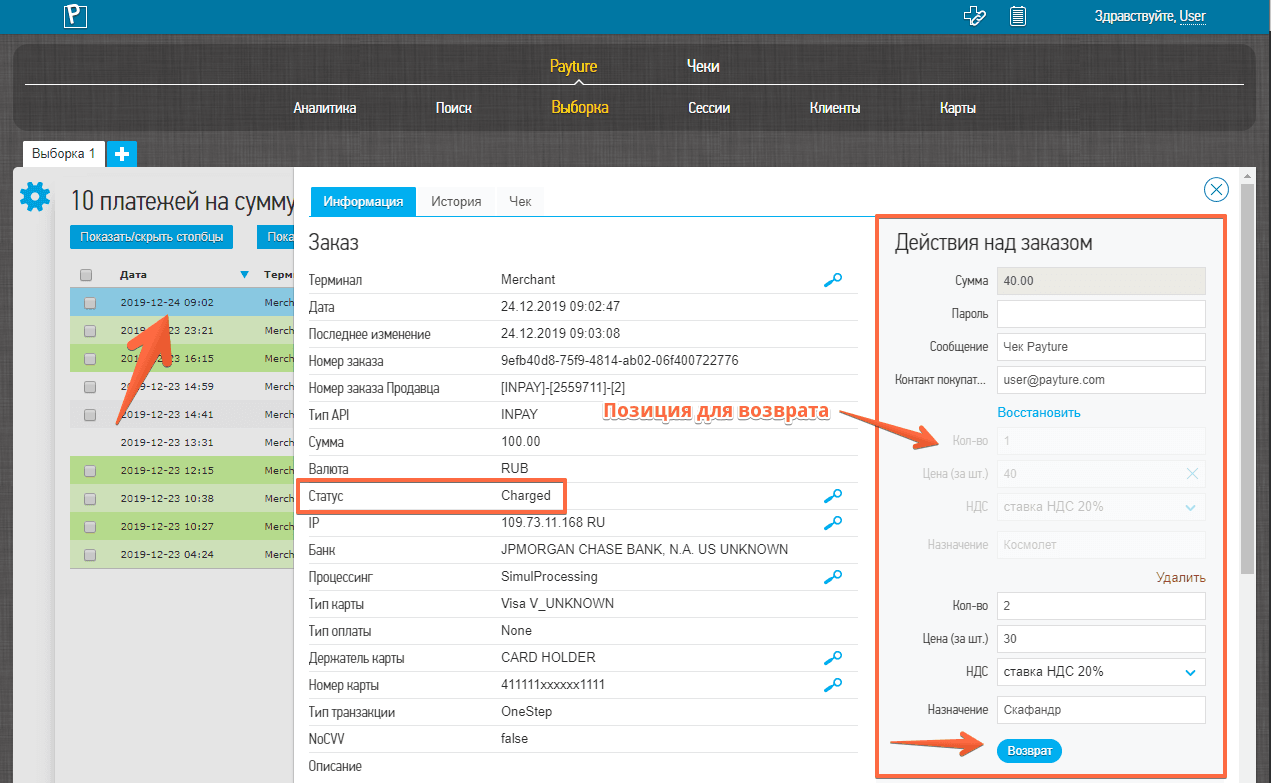
In the Merchant Account, the Merchant can refund previously charged funds to the Customer's card:
- a refund is available only for orders with the Charged status
- a refund can be made for either the full or a partial amount
- the refund amount cannot exceed the charged amount
- the number of partial refunds is limited only by the remaining charged amount
- if a receipt was generated with the payment, a full refund automatically generates a "Sale refund" receipt with all items of the original receipt, while a partial refund generates a "Sale refund" receipt with all items and sends a new "Sale" receipt with the remaining items
To refund:
- On the "Search" or "Filter" tab, select the required order with the Charged status.
- In the "Order actions" window, enter the password for performing operations in the Merchant Account. The password is provided together with the test or production access parameters. If a receipt was generated at the time of the hold, the Merchant will see the receipt delivery parameters and all receipt items.
- Set the parameters:
a. For a full refund, remove all receipt items. The refund amount will be calculated automatically in the "Amount" field.
b. For a partial refund, remove only the items to be refunded or reduce their quantity (a new sale receipt will be generated for the remaining items). The partial refund amount will be calculated automatically in the "Amount" field (the field will contain the refund amount, not the remaining charged amount!).
c. If fiscal receipt generation is not enabled for the terminal, enter the refund amount manually. The amount is specified in rubles, with kopecks after the decimal point. - If needed, the Merchant can change the Customer's contact for sending the receipt and the subject of the receipt message.
- Click "Refund". If the operation succeeds, the order in the Merchant Account changes to the Refunded status for a full refund or Charged (R) for a partial one. All receipts generated for the order will be available in the order information in the "Receipt" window, as well as in the "Receipts" section of the Merchant Account.
 Interface in Russian
Bulk operations
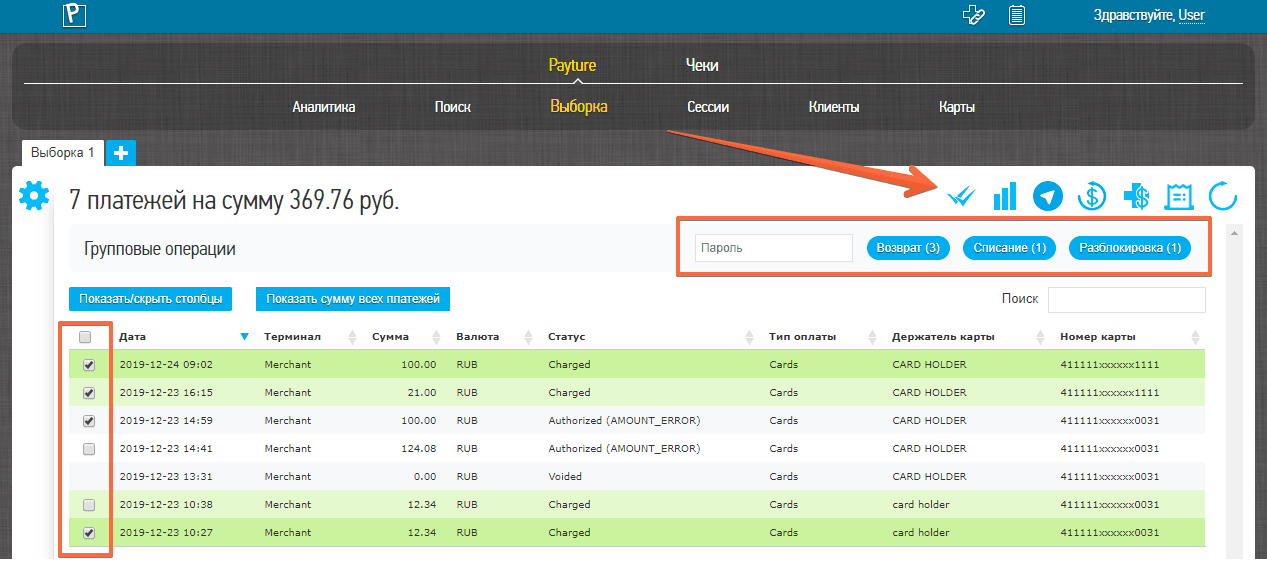
The Merchant Account lets the Merchant perform refunds, captures or hold releases for multiple transactions at once:
- bulk operations are performed only for the full amount
- bulk operations must be performed within a single terminal
- the order must have a valid status for the operation
| Operation | Transaction status |
|---|---|
| Releasing a hold | Available for the Authorized status |
| Charge | Available for the Authorized status |
| Refund | Available for the Charged status |
To perform bulk operations:
- On the "Search" or "Filter" tab, click "Bulk operations"
 .
- Select one or more orders. The "Bulk operations" window will show the number of orders for which each operation is available.
- Enter the password for performing operations in the Merchant Account. The password is provided together with the test or production access parameters.
- Click "Refund", "Charge" or "Unblock".
 Interface in Russian
Refund confirmation
If a refund has been completed but the funds have not yet reached the Customer's account, the Merchant can generate a refund confirmation letter and send it to the Customer.
The confirmation letter contains the payment and refund details that the issuing bank may need to investigate the reasons for the delay.
A refund confirmation letter can be generated for operations with the following statuses:
- Charged (R) — partial refund
- Refunded — full refund
To enable this feature, contact Payture Support.
To generate a refund confirmation letter:
- Select the payment on the "Search" or "Filter" tab and click "Refund confirmation letter".
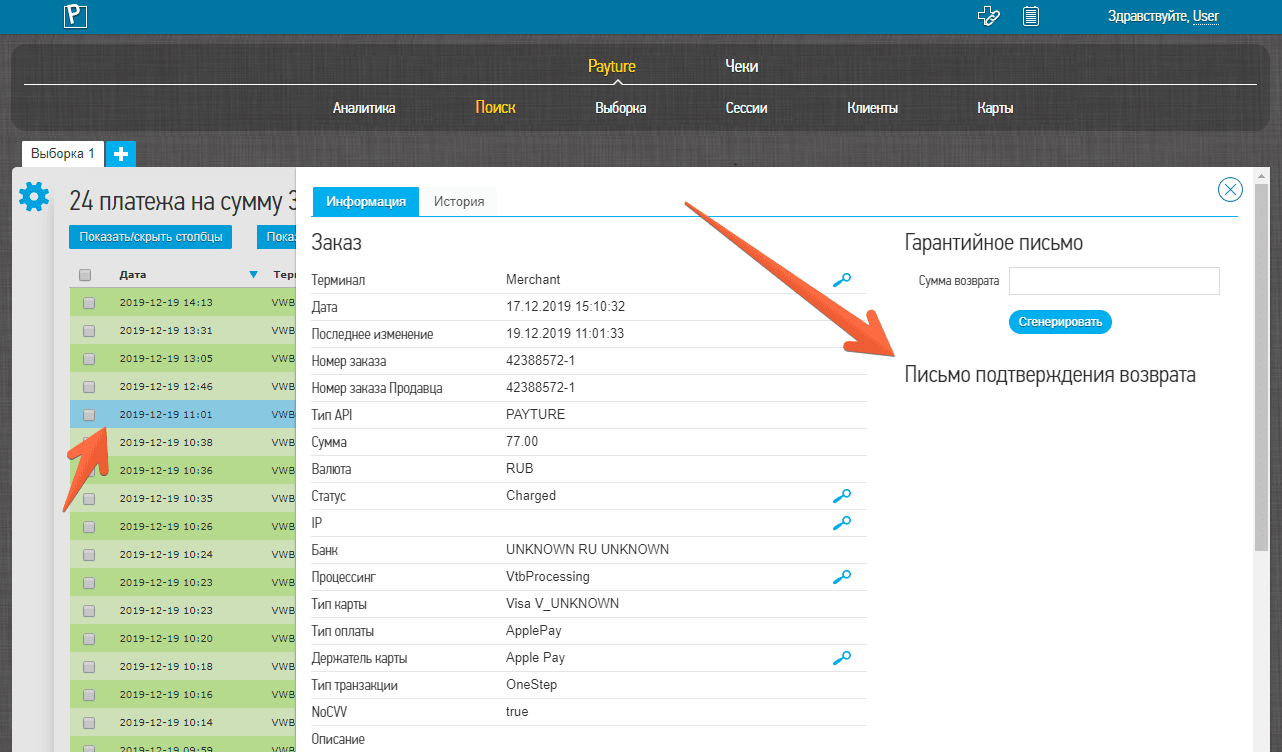 Interface in Russian
- In the payment information, find the refund confirmation number RefNumberRefund and paste it into the ARN field.
If the payment does not contain RefNumberRefund, enter "0" in ARN (Acquirer Reference Number — a unique operation number used to track the refund).
Click "Generate".
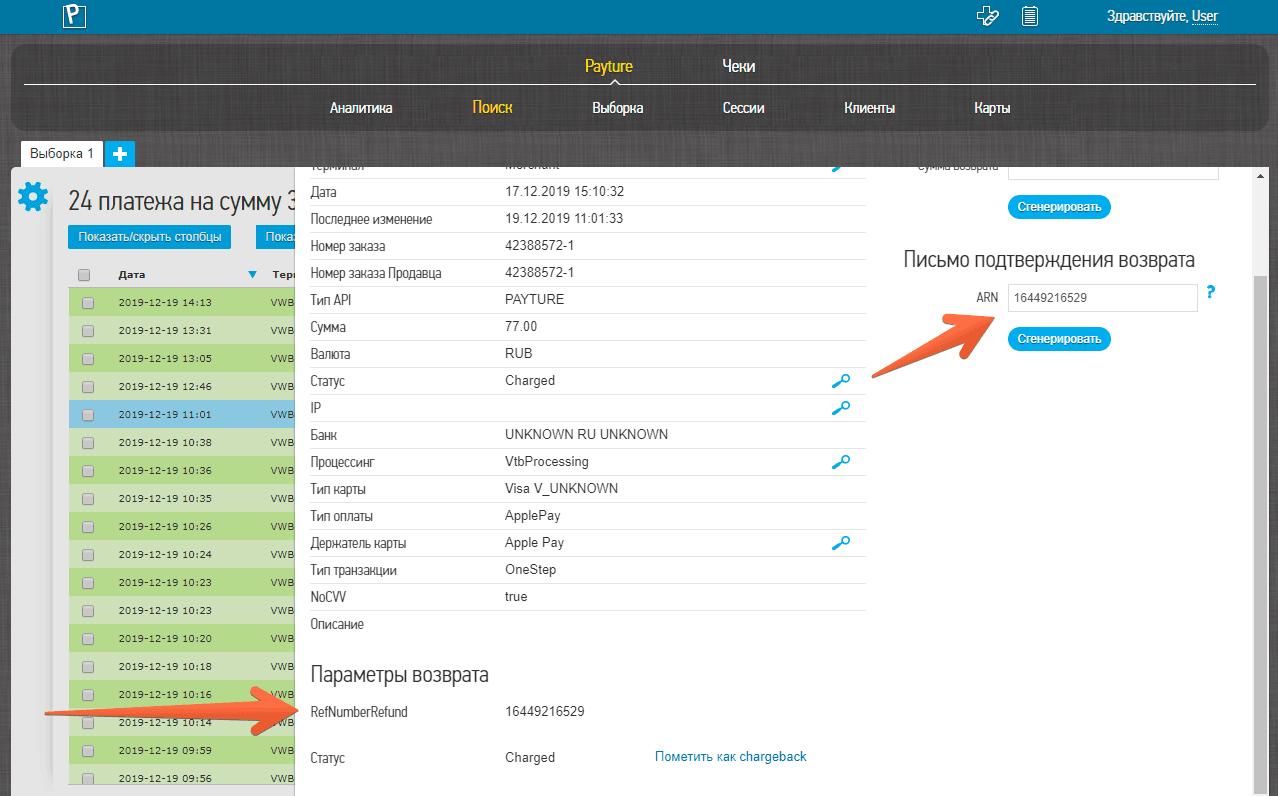 Interface in Russian
Generating a report
This service lets you export all payment attempts made by Customers over a specified period in .CSV format.
- In the additional menu of the Merchant Account, click "Export report"
 .
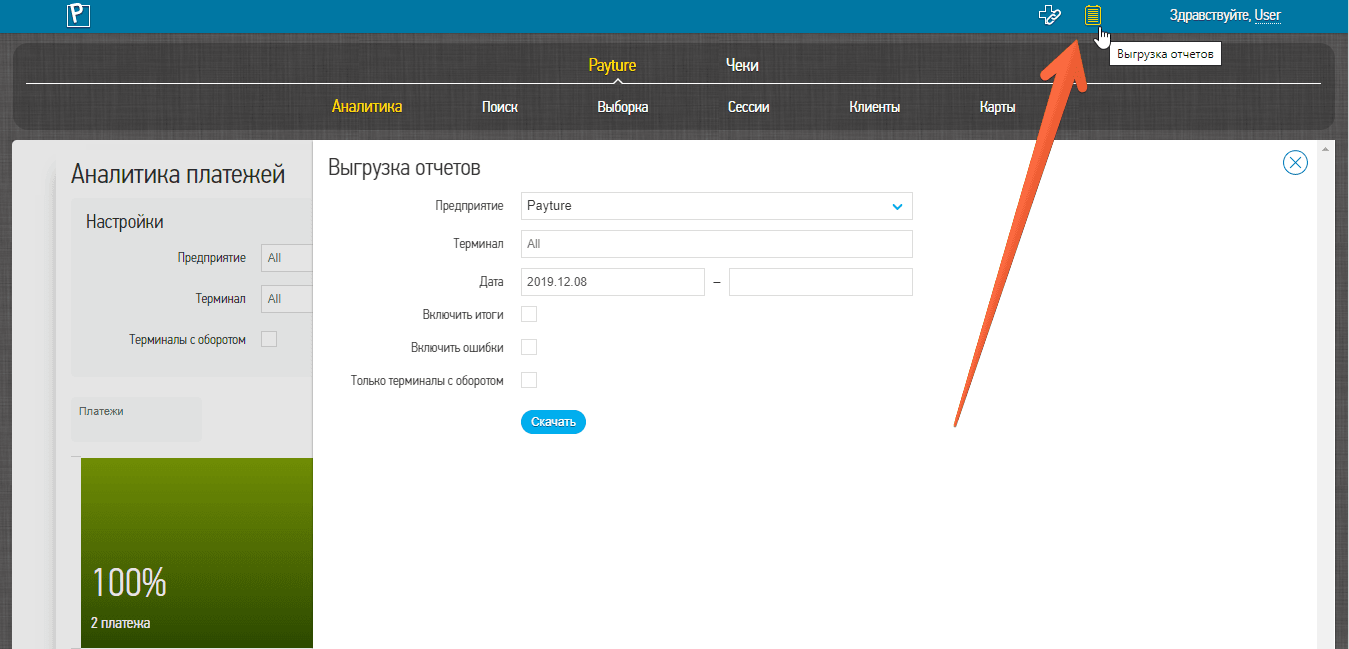 Interface in Russian
- Specify the required report parameters and click "Download".
The report does not include data for the current day.
Report parameters
| Parameter | Description |
|---|---|
| Merchant entity | Name of the merchant entity in the Payture system |
| Terminal | Name of the Merchant terminal in the gateway Multiple terminals can be selected |
| Date | Period for which the report is generated |
| Include totals | Adds the total amount and number of transactions made during the specified period to the report |
| Include errors | Adds information on errors received during payments to the report |
| Only terminals with turnover | The report will include information only on terminals with turnover Terminals with any operations during the last 3 months |
Registering the Telegram bot
The Telegram bot provides a quick and convenient way to get payment analytics.
- To register the Telegram bot, go to the "Payture" → "Analytics" tab and click "Register Telegram BOT"
 .
- Enter the phone number of your Telegram account and click "Register".
- Send the registration command you received to the Telegram bot @Payture_bot, or follow the generated link.
- After successful activation, the bot will offer the available commands.